
Exam AI-300 Topic 1 Question 41 Discussion
Actual exam question for Microsoft's AI-300 exam
Question #: 41
Topic #: 1
Question #: 41
Topic #: 1
Drag and Drop Question
You have an Azure Machine Learning workspace named WS1 and a GitHub account named account1 that hosts a private repository named repo1.
You need to clone repo1 to make it available directly from WS1. The configuration must maximize the performance of the repo1 clone.
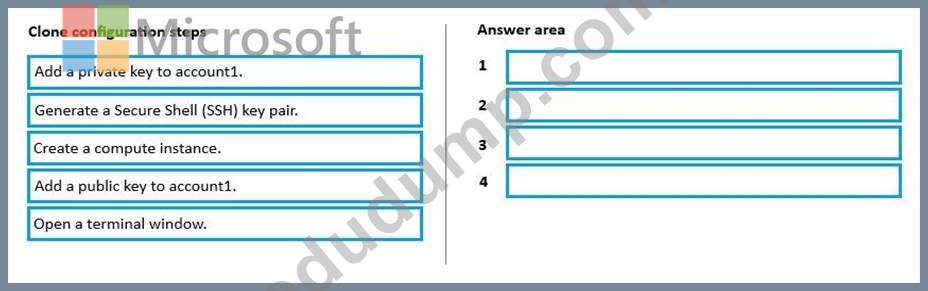
Which four actions should you perform in sequence?
You have an Azure Machine Learning workspace named WS1 and a GitHub account named account1 that hosts a private repository named repo1.
You need to clone repo1 to make it available directly from WS1. The configuration must maximize the performance of the repo1 clone.
Which four actions should you perform in sequence?
Suggested Answer:
Explanation:
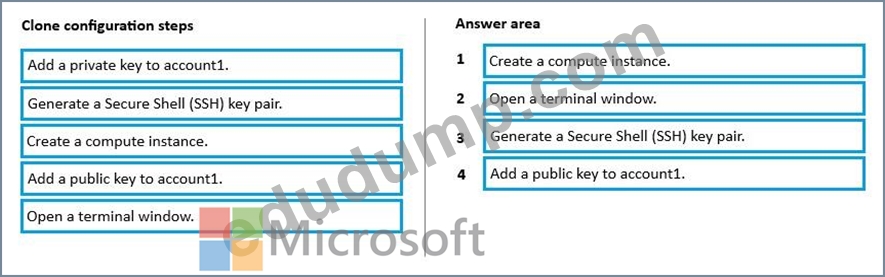
Step 1: Create a compute instance
Git integration for Azure Machine Learning
Clone Git repositories into your workspace file system
Azure Machine Learning provides a shared file system for all users in the workspace. To clone a Git repository into this file share, we recommend that you create a compute instance (Step 1) & open a terminal (Step 2). Once the terminal is opened, you have access to a full Git client and can clone and work with Git via the Git CLI experience.
We recommend that you clone the repository into your user directory so that others will not make collisions directly on your working branch.
Step 2: Open a terminal window
Step 3: Generate a Secure Shell (SSH) key pair
Authenticate your Git Account with SSH
Generate a new SSH key
1. Open the terminal window in the Azure Machine Learning Notebook Tab.
2. Paste the text below, substituting in your email address.
ssh-keygen -t rsa -b 4096 -C [email protected]
This creates a new ssh key, using the provided email as a label.
3. When you're prompted to "Enter a file in which to save the key" press Enter. This accepts the default file location.
4. Verify that the default location is '/home/azureuser/.ssh' and press enter. Otherwise specify the location '/home/azureuser/.ssh'.
5. At the prompt, type a secure passphrase. We recommend you add a passphrase to your SSH key for added security Step 4: Add a public key to account1.
Add the public key to Git Account
1. In your terminal window, copy the contents of your public key file. If you renamed the key, replace id_rsa.pub with the public key file name.
cat ~/.ssh/id_rsa.pub
2. Select and copy the SSH key output to your clipboard.
3. Next, follow the steps to add the SSH key to your preferred account type:
Reference:
https://learn.microsoft.com/en-us/azure/machine-learning/concept-train-model-git-integration
by Wright at Aug 25, 2026, 08:01 AM
0
0
0
10
Comments
Upvoting a comment with a selected answer will also increase the vote count towards that answer by one. So if you see a comment that you already agree with, you can upvote it instead of posting a new comment.
Report Comment
Commenting
You can sign-up / login (it's free).